
Cherry Studio - Desktop AI Client
Chat Settings Options
In the System Settings -> Chat Settings of the Utechai console, the following shortcut options can be added to easily populate Cherry Studio with a single click on the token management page:
{ "Cherry Studio": "cherrystudio://providers/api-keys?v=1&data={cherryConfig}" }🍒 Cherry Studio is a powerful desktop AI client designed for professional users, integrating 30+ industry-specific intelligent assistants to meet the needs of various work scenarios and significantly improve work efficiency.
- Official Website:
<https://cherry-ai.com/> - Download Address:
<https://cherry-ai.com/download> - Official Documentation:
<https://docs.cherry-ai.com>
UtechAI Integration Method
Parameter Configuration
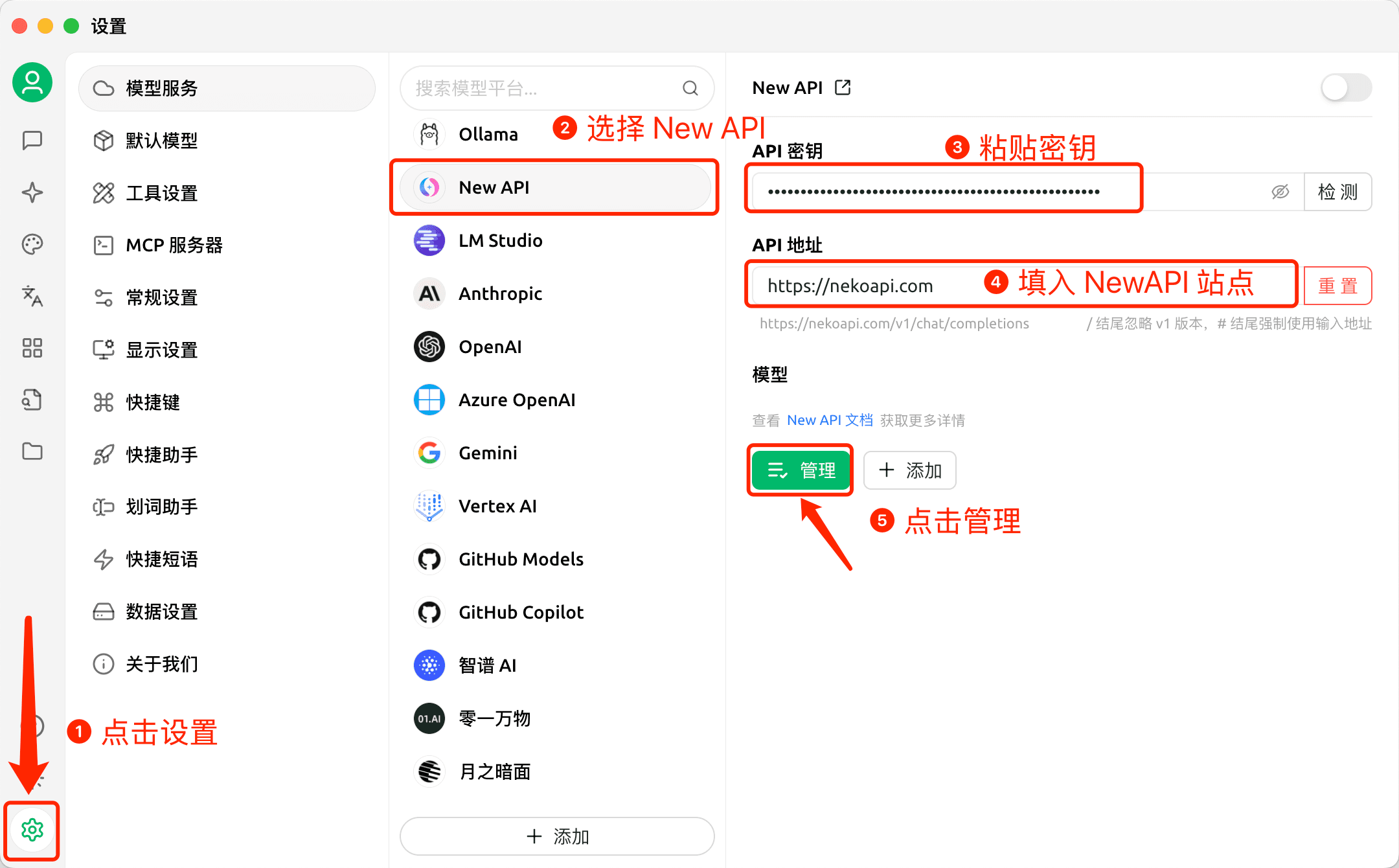
Provider Type: UtechAI supported types API Key: Obtained from UtechAI API Address: UtechAI site address
Visual Guide
-
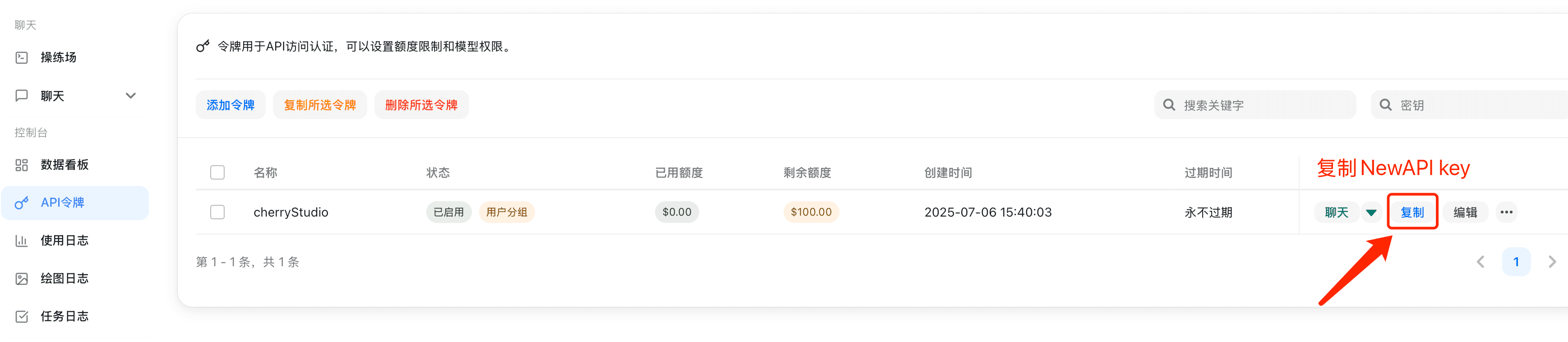
Copy API key in Utechai
-
Add Provider
-
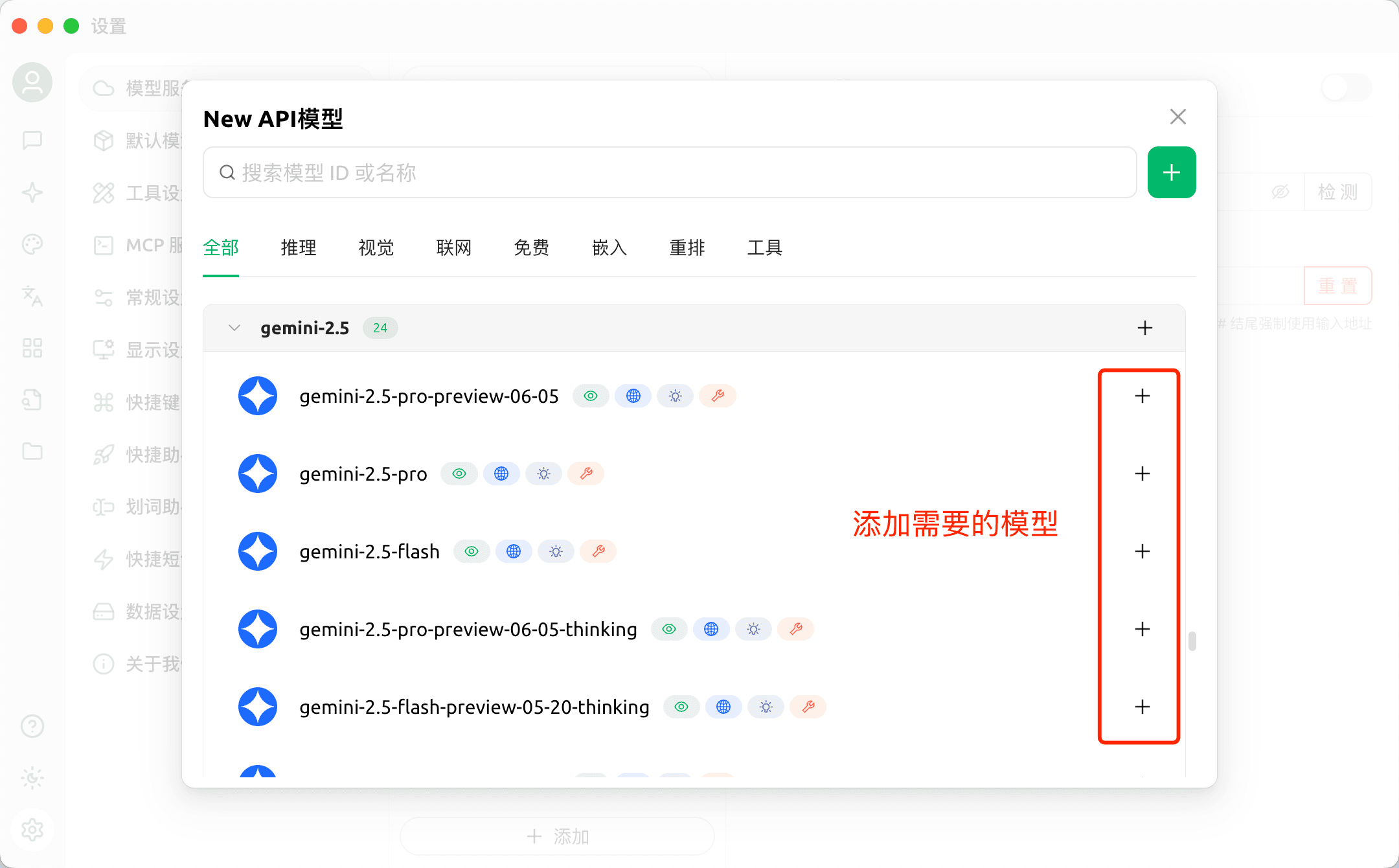
Add Models
-
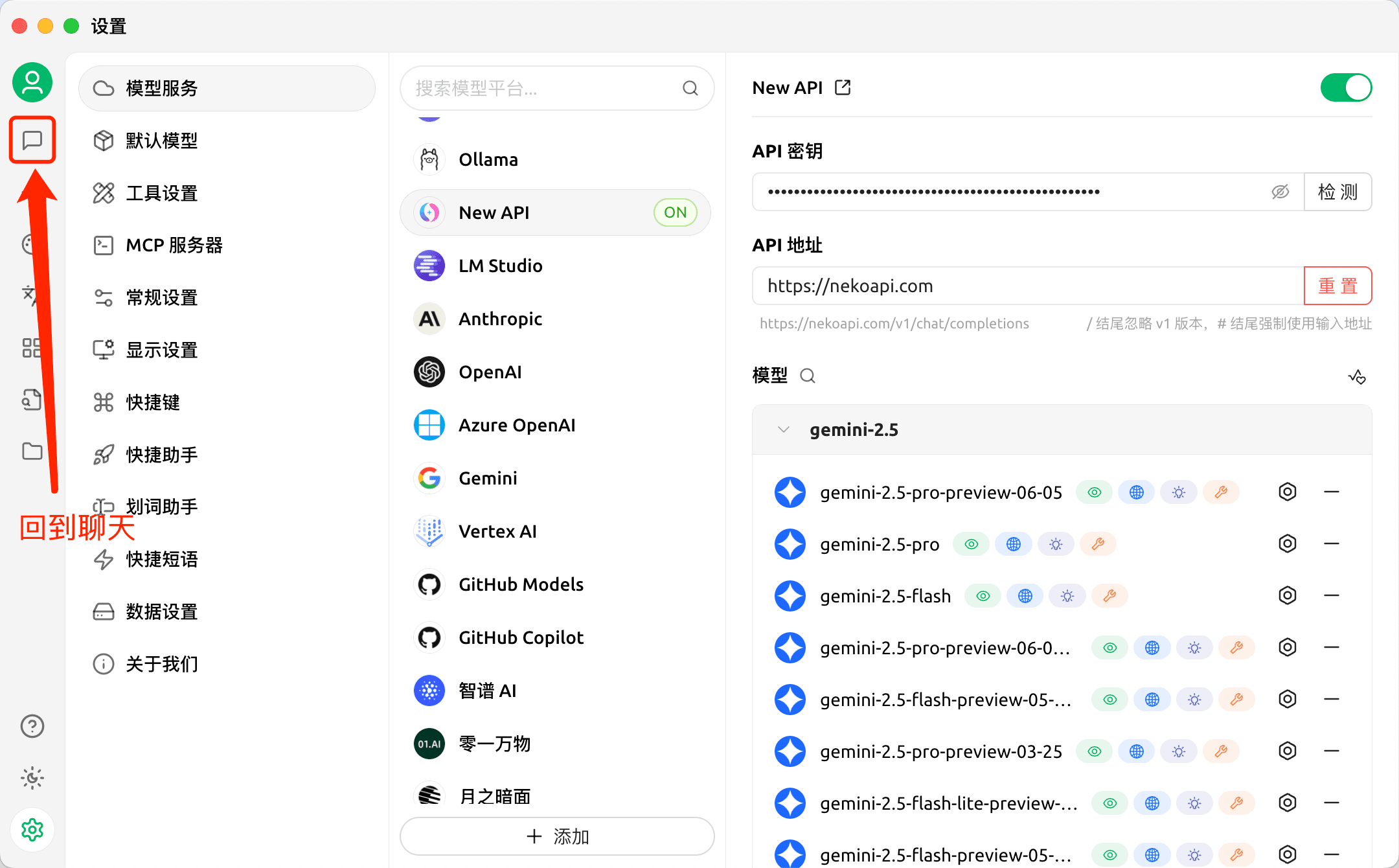
Return to Chat Page
-
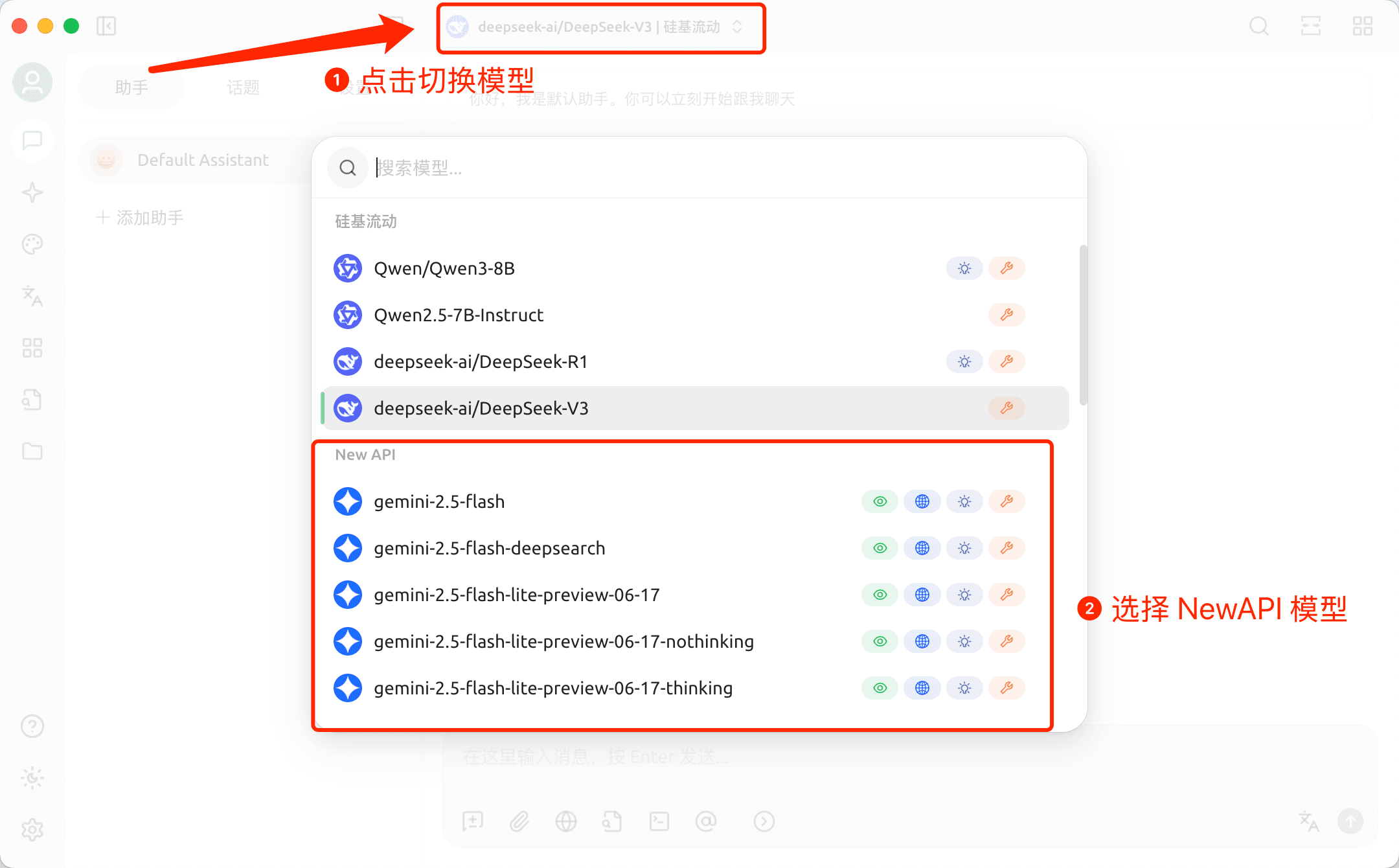
Switch UtechAI Model
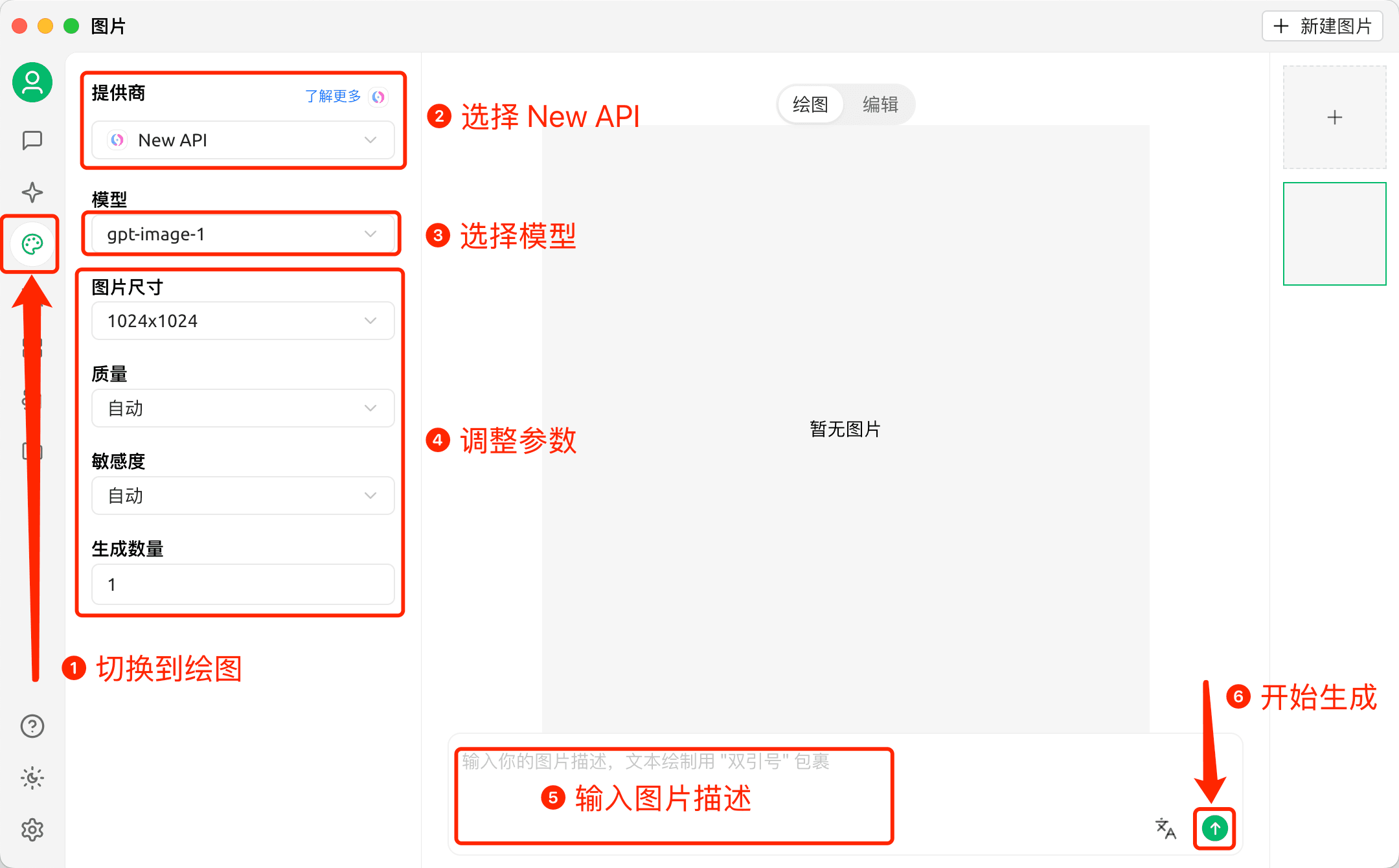
Drawing in Cherry Studio
-
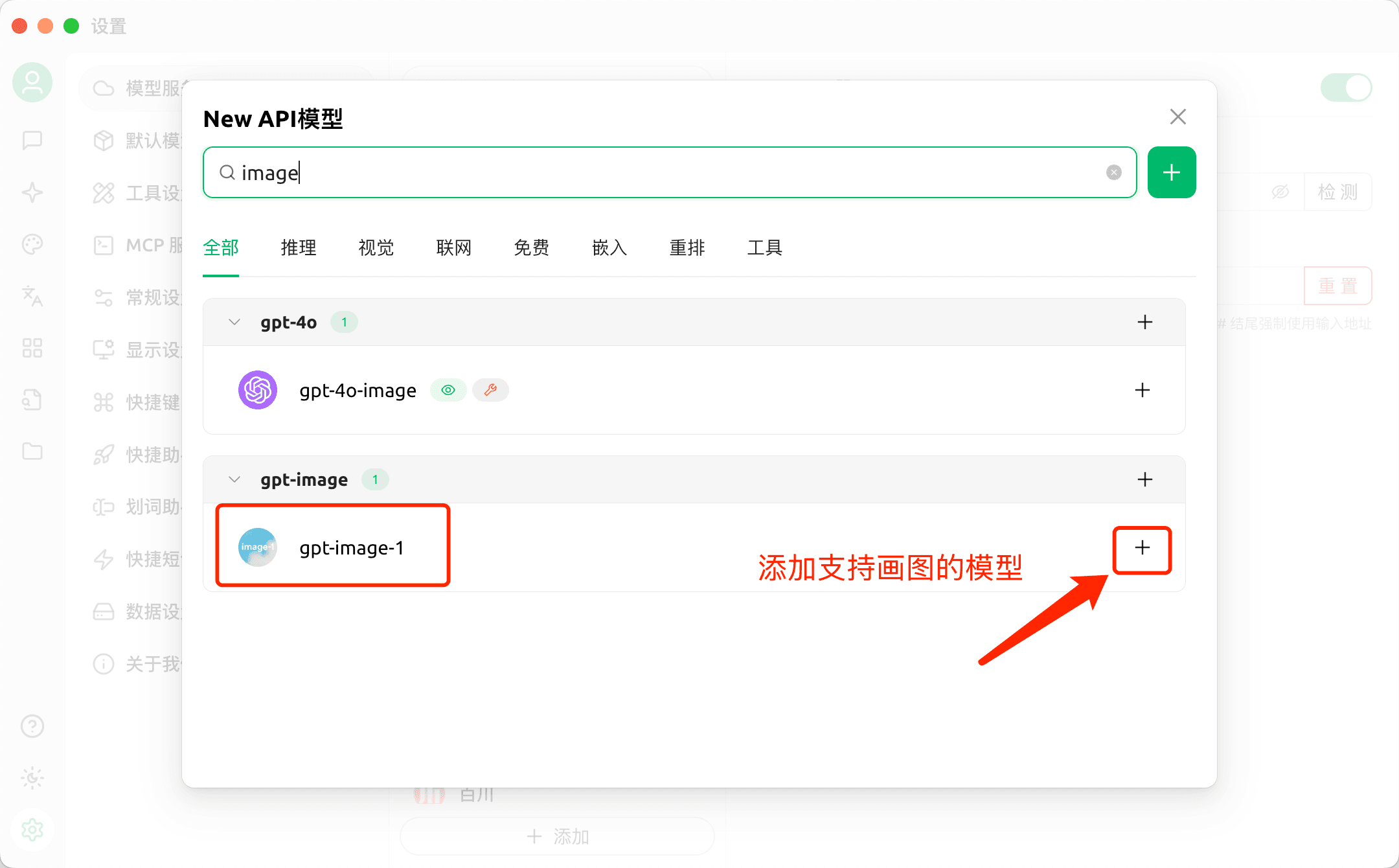
First, add models that support drawing
-
Draw
How is this guide?
Last updated on